
How to Check If an APK File Is Safe Before Installing
Description
Downloading Android apps in APK format can be useful when an application is not available through the Google Play Store. However, installing an APK from an unfamiliar website can expose your device to malware, unwanted advertisements, data theft, and privacy risks.
Before installing any APK file, it is important to check its source, permissions, file details, and security status. A few simple checks can help you make a more informed decision and reduce the risk of installing a harmful application.
In this guide, we explain how to check whether an APK file is safe before installing it on your Android device.
What Is an APK File?
APK stands for Android Package Kit. It is the file format Android uses to distribute and install applications.
An APK file contains the application components required for installation, including its code, resources, assets, and manifest information.
Many Android applications are distributed through the Google Play Store, but developers can also distribute APK files through their official websites or other platforms.
An APK file is not automatically safe simply because it downloads successfully. Its source and contents should be checked before installation.
1. Download APK Files From Trusted Sources
The first step in checking APK safety is identifying where the file comes from.
Whenever possible, download applications directly from the Google Play Store or the developer’s official website. These sources generally provide better transparency about the application and its publisher.
Before downloading an APK, check the following:
- Official website: Make sure the website belongs to the actual app developer.
- Developer information: Look for the developer’s name and contact details.
- Download URL: Check whether the website uses HTTPS.
- File information: Confirm that the application name and version match the developer’s description.
- Unusual redirects: Avoid websites that repeatedly redirect you to unrelated pages or suspicious downloads.
HTTPS protects the connection between your browser and the website, but it does not prove that an APK file is safe.
2. Scan the APK File Before Installing It
Scanning an APK file can help identify known malware and suspicious files.
Android includes Google Play Protect, a built-in security feature that checks applications for potentially harmful behaviour. It can also scan applications installed from sources outside Google Play.
To check your device:
- Open the Google Play Store.
- Tap your profile icon.
- Select Play Protect.
- Open Play Protect settings.
- Make sure Scan apps with Play Protect is enabled.
- Return to Play Protect and run a scan if the option is available.
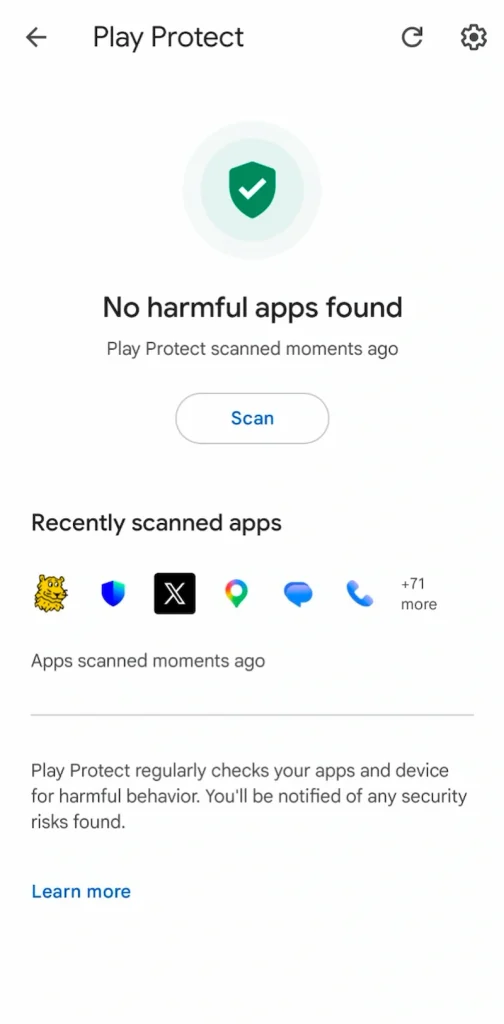
If Google Play Protect displays a warning about an application, take it seriously. Do not disable security protection just to install a suspicious APK.
You can also use a reputable multi-engine file scanning service to examine an APK before installation. However, remember that a clean scan does not guarantee that a file is completely safe.
3. Check App Permissions Carefully
Permissions determine which parts of your Android device an application can access.
Some permissions are necessary for an application’s main functions. Others may be unnecessary or raise privacy concerns.
For example:
| Permission | Why an app may need it |
|---|---|
| Camera | Taking pictures or scanning QR codes |
| Microphone | Voice recording or communication |
| Location | Navigation or location-based services |
| Contacts | Contact-related features |
| Storage or photos | Accessing selected files and media |
| SMS | Messaging-related functionality |
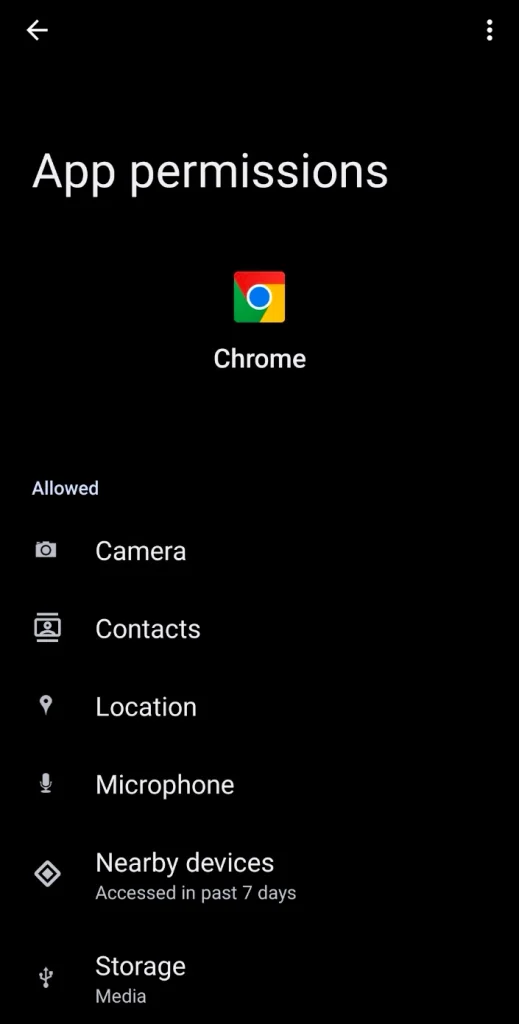
Before installing an application, consider whether its requested permissions make sense for its purpose.
For example, a simple calculator generally has no obvious reason to request access to your microphone, contacts, or SMS messages.
Avoid applications that request sensitive permissions without a clear explanation.
4. Verify the APK Developer and Version
Checking the developer and application version can help you identify suspicious or modified files.
Compare the APK information with the details provided on the developer’s official website or app listing.
Pay attention to:
- Application name
- Developer or publisher name
- Version number
- Release information
- Package name, where available
- Official website and support details
Be careful with APK files advertised as modified, cracked, unlocked, or premium versions of paid applications.
Such files may have been changed by third parties, and their contents may not match the original developer’s release.
A familiar application name or logo is not proof of authenticity.
5. Check the APK File Size and Details
An APK file’s size can provide another useful clue, although file size alone cannot determine whether an application is safe.
If the developer publishes the official APK size, compare it with the file you downloaded.
Look out for:
- Unexpected differences in file size
- Incorrect application names
- Unusual version numbers
- Files that do not match the advertised application
- Downloads containing additional executable files
A very small or very large APK is not automatically dangerous. Applications differ in size depending on their features, resources, and included components.
Use file details as one part of your overall security check rather than treating them as a final safety test.
6. Avoid Suspicious Download Websites
Not every website offering APK downloads is trustworthy.
Some websites use misleading download buttons, fake update notifications, or redirects to unrelated applications.
Before downloading a file, check whether the website provides:
- Clear application information
- A genuine developer or publisher identity
- A proper privacy policy
- Accurate version details
- A working contact or support page
- A direct and understandable download process
Avoid websites that ask you to install additional applications, provide unnecessary personal information, or disable Android security features.
If a download page looks suspicious, leave it rather than taking unnecessary risks.
7. Be Careful When Allowing Unknown App Installations
Android restricts installations from sources outside trusted app stores unless the user grants the required permission.
On many modern Android devices, this permission is managed separately for each application that can install APK files.
For example, if you download an APK using Chrome, Android may ask you to allow Chrome to install unknown apps.
Only consider enabling this permission when you have checked the source and understand the risks.
After installing an application, you can review your device settings and revoke installation permission for that source if you no longer need it.
Never disable Google Play Protect simply because an unfamiliar website instructs you to do so.
8. What to Do If an APK Looks Suspicious
If an APK triggers a security warning or shows signs of suspicious behaviour, do not install it.
If you have already installed an application and suspect that it may be harmful, take these precautions:
- Disconnect from sensitive accounts if you notice suspicious activity.
- Uninstall the suspicious application if possible.
- Run a Google Play Protect scan.
- Review the application’s permissions and revoke unnecessary access.
- Check your device for unfamiliar applications.
- Change important account passwords from a trusted device if you believe your credentials may have been exposed.
- Contact your bank immediately if you notice unauthorized financial activity.
If the application cannot be removed or your device continues behaving unusually, consider getting help from a qualified Android security professional.
Common Signs of an Unsafe APK
Here are some warning signs to consider before installing an APK file:
- The download comes from an unknown or misleading website.
- The application requests unrelated permissions.
- The file claims to offer unlimited money or unlocked paid features.
- Google Play Protect identifies it as potentially harmful.
- The developer information cannot be verified.
- The download page asks you to disable security protection.
- The application behaves differently from its advertised features.
One warning sign does not always prove that an APK contains malware, but multiple warning signs should make you reconsider installing it.
Frequently Asked Questions
How can I check if an APK file is safe?
Start by checking its source, developer information, permissions, and version details. You can also scan the APK with Google Play Protect or a reputable file scanning service before installation.
Does Google Play Protect scan APK files?
Google Play Protect checks applications installed through Google Play and can also examine applications from other sources. It may warn you about potentially harmful applications and take protective action.
Is downloading APK files safe?
APK files are not inherently unsafe. However, files obtained from unverified sources can contain harmful code or modified application components. Always check the source before installing an APK.
Can an APK contain malware?
Yes. An APK can contain malicious code that may compromise device security or privacy. This is why scanning files and checking permissions are important steps.
Is an APK safe if an antivirus scan shows no threats?
Not necessarily. Security scanners can miss new or previously unknown threats. A clean result reduces some uncertainty but does not guarantee complete safety.
Should I disable Google Play Protect to install an APK?
No. Keeping Google Play Protect enabled is an important security precaution. Do not turn it off just to install an application from an unfamiliar source.
Final Thoughts
Checking an APK file before installation is an important part of maintaining Android security. Always verify the download source, review application permissions, check developer information, and use available security scanning tools.
Remember that no single check can guarantee that an APK is completely safe. Combining several security checks can help you make better decisions and protect your personal information.
At APK Games Pakistan, our goal is to help readers understand Android applications, APK files, and mobile security through useful and informative guides. Always prioritize device security before installing applications from outside official app stores.